The first thing we’ll do at the workshop is set up all the CROCODILE tools. If you have time beforehand, working through these three steps will help the first practicum go smoothly. It should take about 30 minutes. If you get stuck on anything, don’t spend more than a few minutes, jump to the note at the end for how to get help and open an issue before day one.
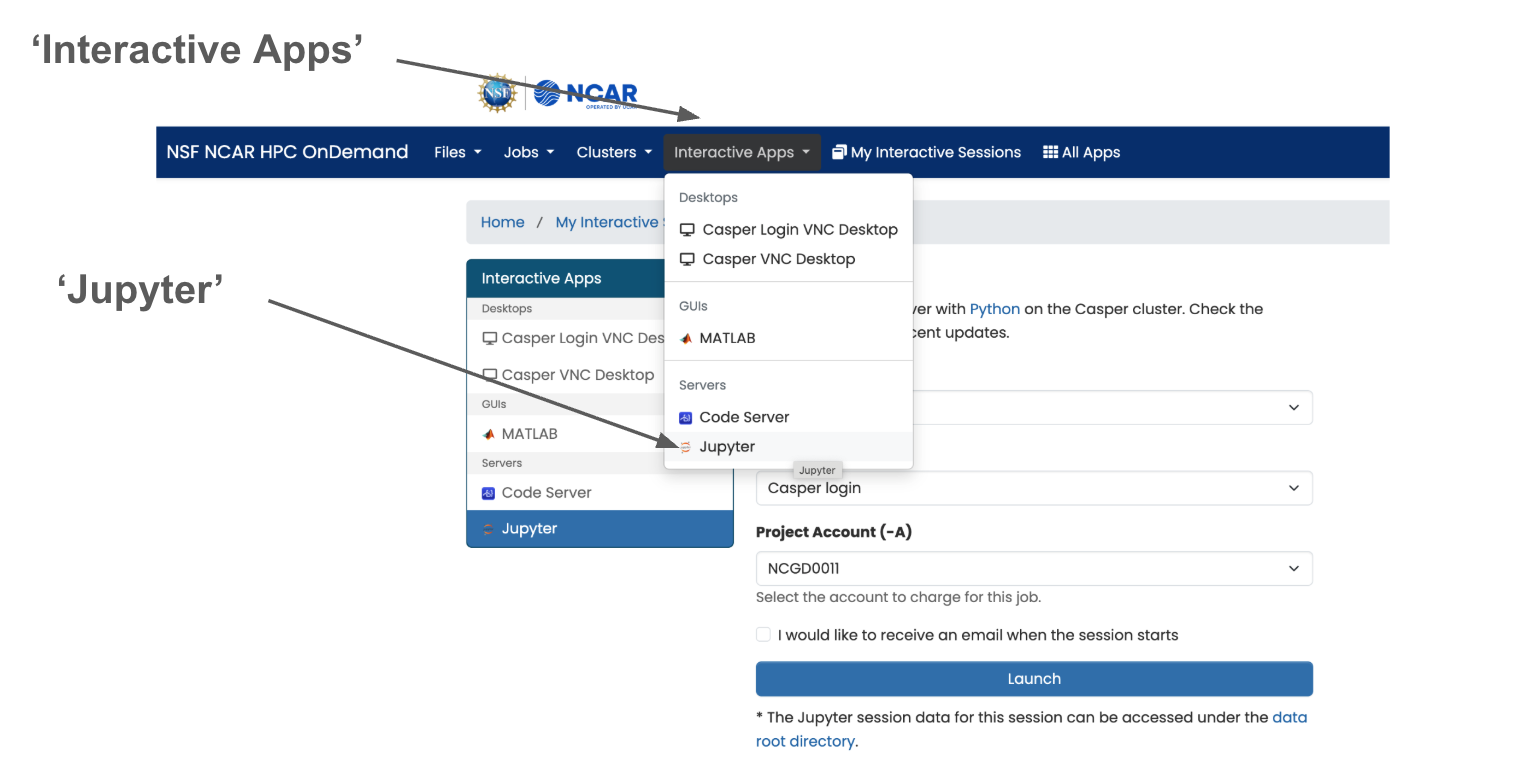
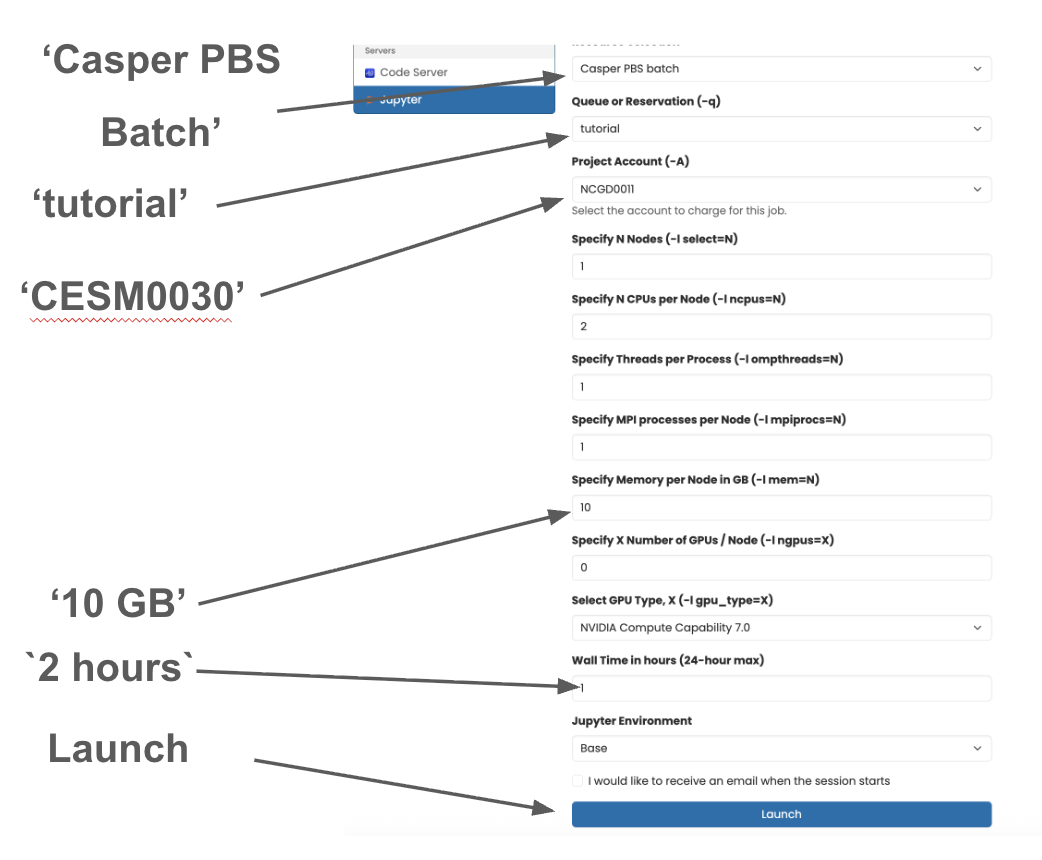
Log in to the supercomputer. Go to OnDemand, NCAR’s web portal for the supercomputer, and log in with your NCAR account. Check your inbox for an NCAR account setup email if you haven’t logged in before. Click Interactive Apps → Jupyter, shown below. In the launch form, select the Casper PBS Batch queue — this is the compute pool interactive sessions run on — with 10GB memory and a 2 hours walltime, as in the second screenshot below. Click Launch and wait for the session to start; this submits a real batch job to a compute node, so it can take a minute or two while it waits on the scheduler.
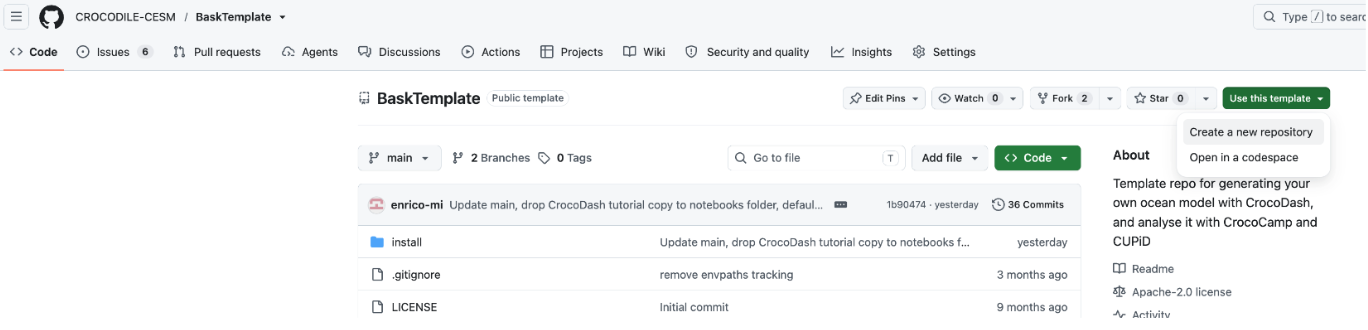
Create a version-controlled workspace. We’ve set up a template repository, CROCODILEWorkspace, with everything you’ll need for the workshop.
Click the “Use this template → Create a new repository” button in the top right corner, shown below.
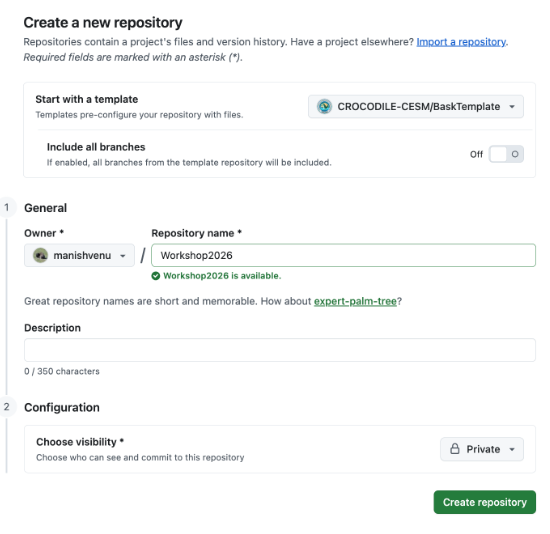
Name your repo — we recommend crocodile2026, since that’s what we’ll use for the tutorial names. For reference, a copy is at github.com/manishvenu/crocodile2026.
Keep it Public and click Create Repository, as in the second screenshot below. It needs to be public so the supercomputer can clone it in the next step without setting up SSH keys or a personal access token.
Install the CROCODILE tools.
Open a terminal: from your OnDemand session (Step 1), go to My Interactive Sessions, enter the session with the connect button, then click the Terminal card at the bottom of the page, shown below.
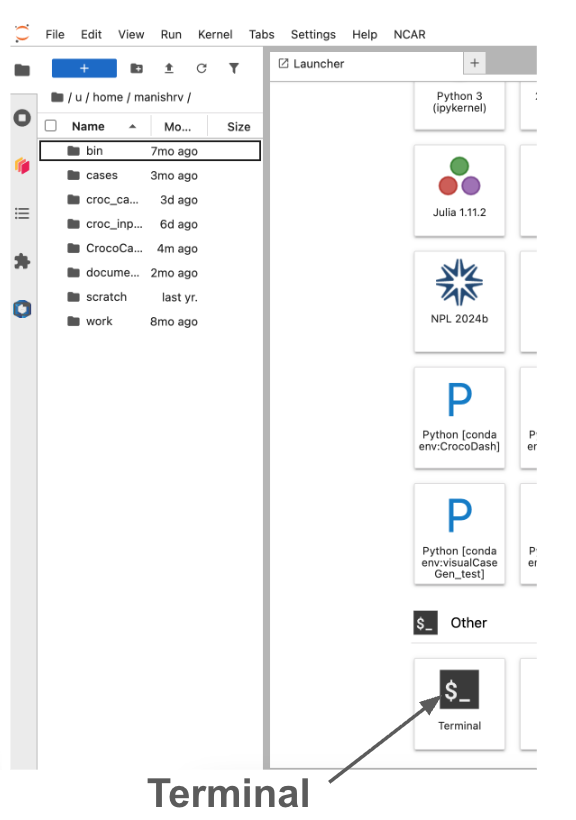
Go to the terminal and move to your $WORK directory. We get 2 TB of space there, which is a good place to install:
Clone your new workspace repo. You don’t need any git experience, you can just copy-paste this command — it downloads your repo onto the supercomputer and keeps it version-controlled, so you can push your regional models back to GitHub, reproducible and online:
git clone https://github.com/<YOUR USERNAME>/<YOUR WORKSPACE NAME>

# e.g.  git clone https://github.com/manishvenu/crocodile2026
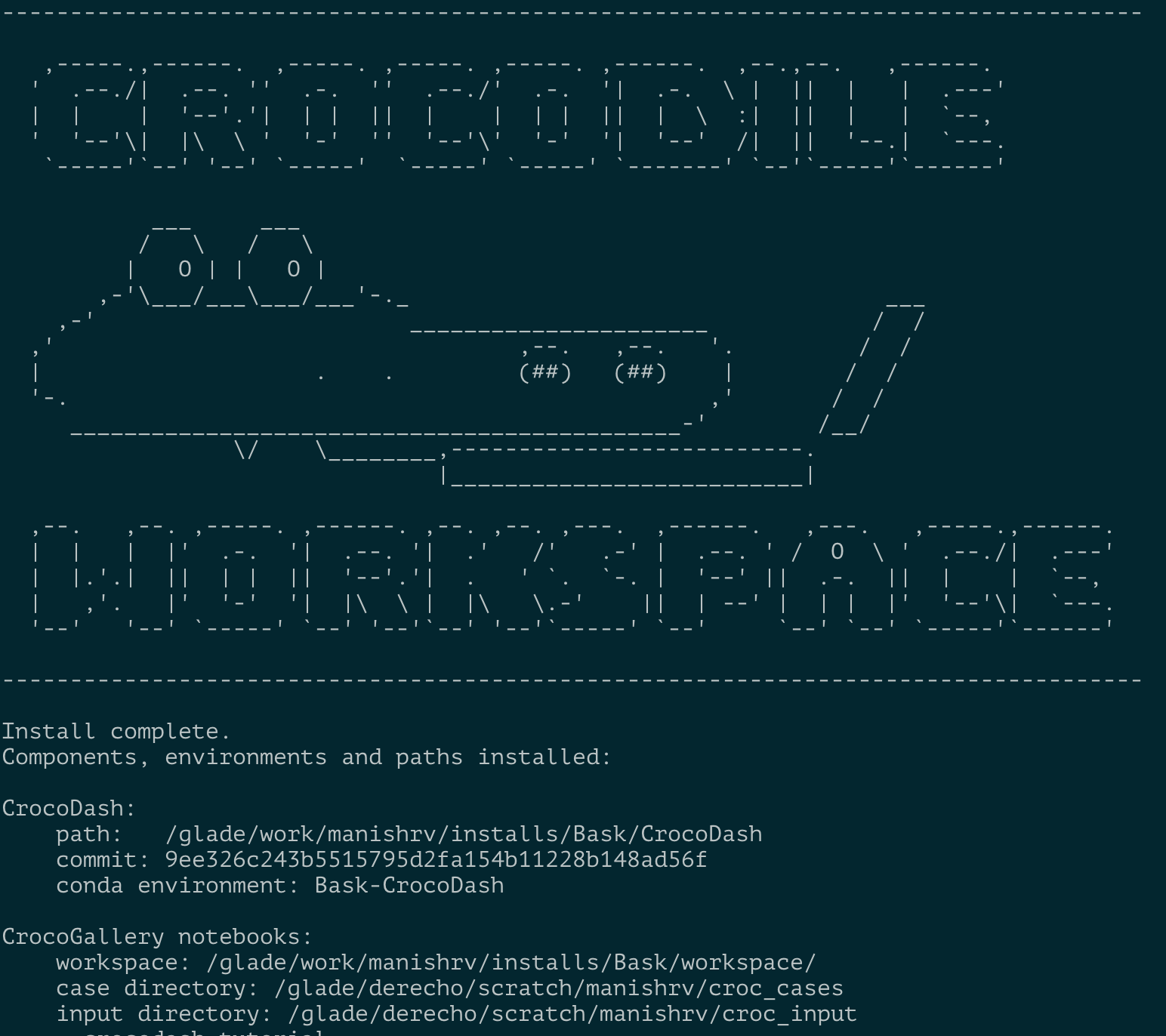
Run the installer. install.sh sets up everything the workshop needs: CESM, model2obs, and the conda environments for CrocoDash and the other CROCODILE tools. It takes about 10-15 minutes, you’ll know it’s done when the terminal returns to a normal prompt with no errors in the output, as in the screenshot below. (It also takes flags for installing pieces individually — --crocodash, --CESM, run ./install.sh -h for the full list — but for the workshop, one flag down below installs everything):
cd $WORK/<YOUR WORKSPACE DIRECTORY NAME>
./install.sh --workshop
Stuck? Open an issue on
CROCODILEWorkspace and we’ll sort it before day one.